- Description and initial config of moving VM
- Lets start the move using Restore Point Collection
- Summary
Description and initial config of moving VM
In this sample I will move a Linux VM with a public IP and a backup vault to another Azure Subscription. This is not supported by the move resource group option which is illustrated in picture here. In my case the server is also hosting a web where I need to update the DNS record to the new Public IP which you will if you follow this blog.

We have different ways of approaching this issue. Two options are
- Restore the backup to a new Subscription
- Create a Restore Point Collection
My preferred method is creating the Restore Point Collection. One of the good benefits using this method is that you can choose all options like VM Size, Network and settings when you create the new VM from the Restore Point Disk.
Lets start the move using Restore Point Collection
I created a new empty Resource Group. In this Resource Group I will create a Restore Point Collection. I start with creating a service windows and turn of the VM I will move.
First I create a temporary resource group in the same subscription and location that my current VM resides in.
In portal.azure.com I choose “Create” and search for Restore Point Collection.

In details select you new Resource Group and the VM you want to move. Also select the disks that is attached to the VM.
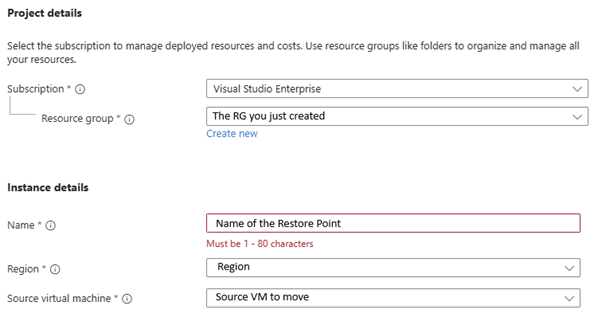
Go to the Resource Group that should only contain the Restore Point Collection. From the resource point you just created you will now choose the option to create a disk. Please name this disk to the name that will be correct for the target VM. When the disk is ready you can remove the restore point. You can now start with the move of the resource group to the new subsription.
From the top menu select to move Resource Group to another Subscription. Select the target Subscription. This can be used for example when you go from PAYG to CSP.
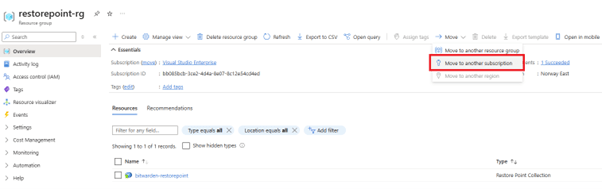
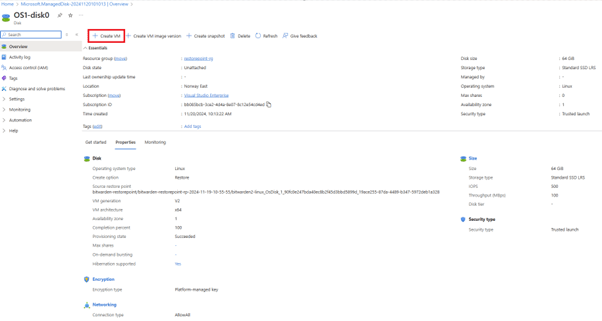
When the move is ready you can go to the Resource Group in the target Subscription. From the managed disk you can now create a new VM. Here you can choose the VM type and settings.
Summary
Make sure that you configure important settings from to be aligned with old VM settings. For example Networks Security Rules(NSG). If you have any DNS records pointed to the Public-IP make sure to update them.
Now you can test out the new VM. And when you are sure everything is working as it should you can remove the old resources under the other subscription.
Good luck with your move!
 Microsoft Cloud Tech blog